


PixGroove: AI Video Generator
2.054.00 Reviews
App Specs
- Version
- 1.2.0
- Updated On
- License
- Free
- Downloads
- 50,000+
- Developer
- MOSIMOSI ELECTRONIC PTE.LTD.
- Categories
- Photography
- Platform
- Android
Screenshots
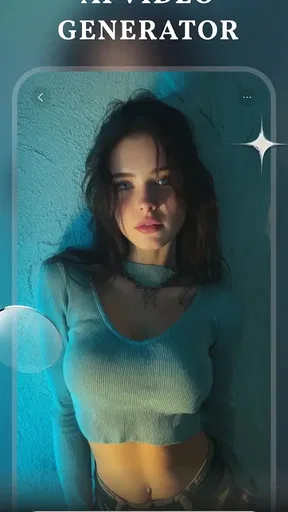
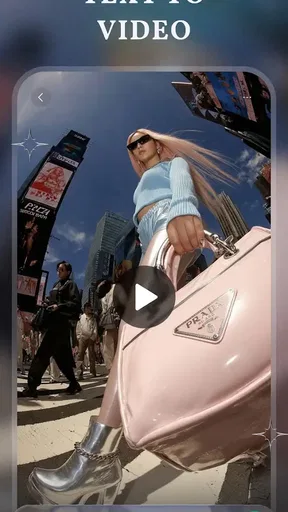
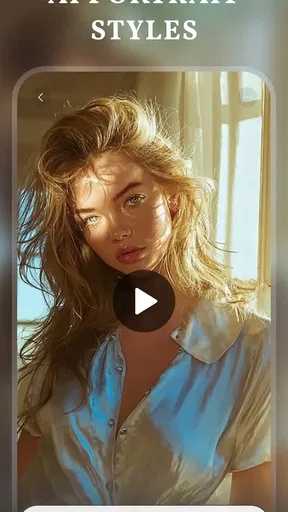
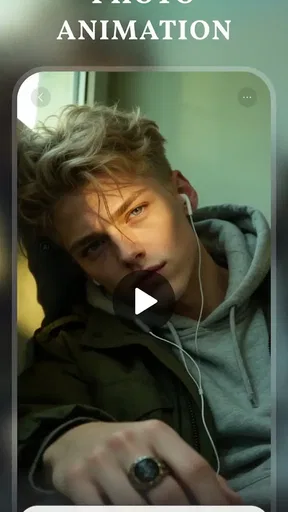
 Analysis by AppCompare
I approached PixGroove: AI Video Generator as a photography app for people who want to turn still images and written ideas into short AI-made videos without opening a full desktop editor. Its appeal is easy to understand: choose a photo, add text, and let an automated process create something more animated and shareable. In my experience, that makes it interesting for quick social posts, personal experiments, and anyone who finds traditional video editing too time-consuming.
At the same time, I would not treat it as a finished replacement for a proper video editor. The app is built around speed and convenience, so the most useful results come when I give it a clear purpose rather than expecting it to invent a complete story on its own. That distinction matters, especially if you are uploading personal photos or planning to use the generated clips publicly.
What PixGroove is really useful for
PixGroove comes from MOSIMOSI ELECTRONIC PTE.LTD. and sits in the Photography category, although its output naturally overlaps with short-form video and social content tools. It is free to install, with optional purchases ranging from $1.99 to $99.99 per item. The app is rated for Teen users, runs on Android 7.0 or later, and its current version is 1.2.0.
The central workflow is simple in concept. I start with an image, provide text that describes the mood or intended result, and use the app’s AI-driven process to produce a moving clip. This is more approachable than learning keyframes, masks, transitions, and timeline editing. Someone who only wants a photo to feel more alive can understand the attraction immediately.
The strongest use case is a quick visual message. For example, I can imagine using a family celebration photo with a short line of text to create a compact greeting, or turning a travel picture into a more dynamic post before sharing it with friends. A small business owner could also use the same basic idea for a temporary product teaser, provided the result is checked carefully before publication.
Where the app becomes less convincing is when the project needs exact timing, consistent branding, or a carefully controlled sequence. AI generation can be helpful for a first draft, but it is not the same as directing every movement. If your goal is a polished advertisement, a multi-scene story, or a video with precise captions and audio timing, a conventional editor will usually give you more dependable control.
Why the photo-to-video approach can save time
The practical advantage is not simply that the app makes a video. It reduces the number of decisions I need to make at the beginning. Instead of searching for footage, choosing a transition, and building a timeline from nothing, I can begin with one image and an idea. That makes PixGroove particularly approachable for users who have visual material but no editing routine.
Worth Reading Before You Choose

Flipboard Shows What News Apps Must Do Beyond the Feed

Switching to Android Auto Means Rethinking Your Driving Routine

Google Calendar Makes a Crowded Week Easier to Manage

Ludo King Makes the Most of the Minutes Between Plans

Baby Panda World Brings Quick Play to Modern Phones, but Its Game Library Feels Busy

ESPN’s Live Game View Makes Following Close Games Easier
A useful habit is to write the text as a direction rather than a vague wish. A phrase describing the subject, atmosphere, movement, and intended audience gives the generator a clearer starting point than a single word such as “cinematic.” I would also keep the first attempt modest. A focused prompt is easier to judge, and it helps reveal whether the result matches the original photo.
Another non-obvious benefit is that a single source image can be tested in different creative directions. I might use one landscape photo for a calm memory-style clip, then try a more energetic version for a social post. This makes the app more valuable as an idea generator than as a final production suite. The first result can show me which visual direction is worth developing elsewhere.
Where the automated result needs supervision
AI animation can produce an appealing impression while still getting important details wrong. Faces, hands, text inside an image, signs, and small objects deserve particular attention. I would not assume that a visually attractive preview is accurate enough for an important family record, a professional announcement, or a product demonstration.
Text deserves special care because there are two different kinds of wording involved. The text I enter as an instruction may guide the style, while text already visible in the source image may be altered or distorted during generation. If a storefront name, date, price, or event detail must remain correct, I would inspect the entire clip and consider adding final lettering in a separate editor.
This is also why I would keep the original photo untouched and treat each generated result as a draft. Saving a clean copy before experimenting gives me a reliable fallback and makes it easier to compare versions. It is a small workflow change, but it prevents an AI experiment from becoming the only copy of an important image.
Trust, controls, and handling personal images
Because PixGroove works with photos and written prompts, trust is part of the decision, not an afterthought. I would pay attention to every permission request, the wording shown when an image is selected, and any account or purchase screen presented during use. The safest approach is to grant only the access needed for the action I am taking and to choose a specific image rather than opening a broader library than necessary.
I would also avoid uploading material that I would be uncomfortable placing into an online creative service. That includes identity documents, private medical images, confidential work material, and photos containing other people who have not agreed to the experiment. This is not a claim about hidden behavior; it is a sensible boundary whenever an app processes personal media.
The same caution applies to prompts. Users sometimes forget that a written instruction can contain private information even when the photo looks harmless. Names, addresses, contact details, school information, and internal business notes do not belong in a creative prompt unless there is a clear reason to include them. Keeping instructions descriptive but non-identifying is a better habit.
I would review the app’s visible privacy notices and account controls before making repeated uploads. In particular, I would look for choices related to deleting projects, managing stored media, signing out, and controlling purchases. If the app presents a permission or consent choice, I would read it instead of tapping through automatically. These checks do not make the creative process slower in any meaningful way, and they give me a clearer sense of what I am agreeing to.
Permissions and practical choices
On Android, I would check PixGroove’s permission page in the system settings after installation, especially if I only plan to select occasional photos. If a permission appears broader than the task requires, I would see whether Android offers a narrower option, such as selecting individual media. I would also revisit permissions later rather than assuming the first choice must remain permanent.
For an everyday test, I would use a non-sensitive image first. A public landscape photo or a simple object is enough to learn the workflow, inspect the generated movement, and see how the app presents saving or sharing. Only after understanding those steps would I consider using personal portraits or images connected to work.
Account controls matter just as much as permissions. If PixGroove asks me to create an account, I would note what is optional, whether sign-in is needed for basic creation, and how I can leave the service later. I would not create several accounts merely to bypass a limit or a purchase screen. That kind of workaround can create confusion around saved projects and makes it harder to keep track of where personal media has been used.
Free access and purchase awareness
The free entry point makes it reasonable to test the basic idea before spending money. However, the presence of in-app purchases means I would watch the transition from creation to export or additional generation carefully. A large price range, from $1.99 to $99.99 per item, makes it especially important to understand what each purchase unlocks before confirming it.
I would use the operating system’s purchase authentication, avoid handing a device to a child while a payment screen is open, and check whether a button starts a transaction or merely continues to the next step. The Teen content rating is another reason for families to discuss purchases and photo sharing rather than assuming that a creative app is automatically risk-free for younger users.
My preferred test is to complete one small project, inspect the result, and decide whether the workflow genuinely saves time. If I find myself paying simply to correct repeated flaws or to recover control that a normal editor already provides, the purchase is probably not worthwhile for my needs. The free installation is best treated as an evaluation opportunity, not as a promise that every useful output will remain cost-free.
Who should use it, and who should choose something else
I think PixGroove is best suited to casual creators, photography enthusiasts, and social users who want a fast visual experiment. It can also help someone who has good photos but feels intimidated by editing software. The app’s value is highest when “good enough to share” is the target and when the user is willing to review the result instead of accepting the first generation automatically.
I would be more cautious about recommending it to professional photographers who need exact preservation of detail, marketers who require repeatable brand output, or filmmakers who need shot-by-shot control. A timeline editor is a better choice when I need to place captions at exact moments, synchronize music, correct color consistently, or revise one small section without regenerating the entire concept.
It is also not the right tool for someone who wants a private, offline-first workflow. Since the app’s main appeal depends on AI processing, I would make a deliberate decision about the photos and prompts I use rather than treating it like a simple local slideshow maker. For sensitive material, a device-based editor with clear local storage may be the more comfortable option.
A workflow that keeps the user in control
My recommended process begins with a duplicate of the original image and a short, specific instruction. I would describe the subject and the intended feeling, then generate one version rather than flooding the app with many similar attempts. After that, I would watch the complete clip, not just the opening preview, and check faces, edges, signs, written details, and any sudden movement that could make the result look unnatural.
Next, I would decide whether the generated video is a finished share or merely a starting point. If it is a draft, I would move to a familiar editor for trimming, captions, sound, or branding. This two-stage approach is more practical than asking PixGroove to handle every part of production. It uses the app for what it does best—quick visual transformation—while reserving precision work for a tool designed around manual control.
For a family greeting, I would keep the source image respectful, avoid adding private names or details to the prompt, and show the finished clip to the people pictured before posting it publicly. For a business post, I would verify every product detail separately and avoid presenting AI movement as proof of how a real object behaves. These small safeguards protect both accuracy and the people represented in the image.
One further trade-off is consistency. If I generate several clips from different photos, the visual treatment may not feel like one coherent campaign. I would therefore choose images with a similar mood and use short prompts that repeat the same creative intention, while still checking each output independently. If uniformity matters more than speed, manual editing remains the safer route.
My cautious verdict
PixGroove is an appealing experiment for turning still photography into short AI-assisted videos, and its free installation lowers the barrier to trying that idea. I like it most as a quick concept tool: it can help me discover a visual direction, animate an otherwise static memory, or prepare a lightweight social post without learning a complicated timeline.
My recommendation comes with clear limits. I would protect original photos, use narrow permissions where possible, read the visible choices around accounts and storage, and inspect purchase screens before confirming anything. I would also review every generated frame for distorted details and misleading movement. The app can save creative time, but it does not remove the need for human judgment.
With an average rating of 2.0 from around 240 ratings and over 50 thousand installs, PixGroove currently looks like a product worth testing carefully rather than adopting without reservations. That does not decide the experience for every user, but it reinforces my view that the free trial should come first. If you want fast photo animation and accept some creative unpredictability, it may be enjoyable. If you need privacy-sensitive handling, exact editing, or dependable professional consistency, I would choose a more controlled alternative.
My bottom line: PixGroove is most convincing when I use it as an AI-powered first step, not as the entire video studio. Start with a harmless image, learn the controls, check the result closely, and spend only when the time saved is genuinely worth the trade-off.
Pros
- Turns text prompts into short videos with minimal editing effort.
- Offers creative styles and effects for social media content.
- Useful for brainstorming visual concepts and story ideas.
- Simple interface makes AI tools accessible to beginners.
- Can help produce content without advanced video-editing skills.
Cons
- Output quality may vary depending on the prompt and selected style.
- Some features or exports may require a paid subscription.
- Generated videos can look repetitive or lack fine detail.
- Processing times may increase during busy periods.
- Watermarks or resolution limits may apply to free exports.
FAQs for PixGroove: AI Video Generator
What is PixGroove: AI Video Generator, and what can I use it for?
PixGroove: AI Video Generator is designed to help users create short, stylized videos with the assistance of artificial intelligence. You can typically use it to animate images, apply visual effects, generate social-media-ready clips, and experiment with music-driven or cinematic edits. It is aimed at casual creators as well as users who want quick results without learning complex professional video-editing software.
Do I need professional editing skills to use PixGroove?
No professional editing experience is generally required. PixGroove focuses on templates, automated effects, and guided creation tools, so most users can start by selecting media from their device and choosing a visual style. However, producing a polished result may still require some trial and error, especially when adjusting timing, transitions, text, music, or the intensity of AI-generated effects.
Can PixGroove create videos from my own photos and media files?
The app is intended for creating videos from user-provided content, such as photos, short clips, and other supported media. Before downloading, check the current app permissions and supported file types on the relevant store listing, because compatibility can vary by device and operating system. Results may also depend on image quality, portrait framing, lighting, and the amount of source material provided.
Is PixGroove: AI Video Generator free to download and use?
PixGroove may be available as a free download while offering optional in-app purchases or a subscription for premium templates, effects, exports, or additional AI features. Free access can also include limitations such as advertisements, watermarks, fewer creation options, or restricted export quality. Review the pricing page carefully before confirming a trial or subscription, and check how cancellation works on your platform.
Does PixGroove require an internet connection, and what happens to my uploaded content?
AI video generation commonly requires an internet connection because processing may take place on remote servers rather than entirely on the phone. Uploading photos or videos can therefore use mobile data and may take longer with a weak connection. Before using private or sensitive media, read PixGroove’s privacy policy to understand how files are processed, stored, retained, and whether content may be used to improve its services.


